Desk Cable Management: 9 Ideas for Small Desks
Desk Cable Management: 9 Ideas for Small Desks
You finally get your small desk set up, and somehow the cables take over half of it. One charger slips behind the desk, another crosses your workspace, and the power strip is sitting on the floor like it pays rent.
That’s the frustrating part about desk cable management: small spaces leave very little room for messy cables. Add a laptop, monitor, phone charger, headphones, or a few accessories, and things can get tangled quickly.
There isn’t one perfect cable organization system for every desk. A tiny laptop setup needs something different from a multi-monitor home office.
The good news? You don’t need to overcomplicate it. In this guide, you’ll learn simple ways to route, group, hide, and store your cables so your desk feels cleaner and easier to use—without turning cable management into another project.
Start With a 10-Minute Cable Audit Before Buying Anything
Before buying a tray, clips, sleeves, or anything else, take 10 minutes to figure out what actually needs organizing.
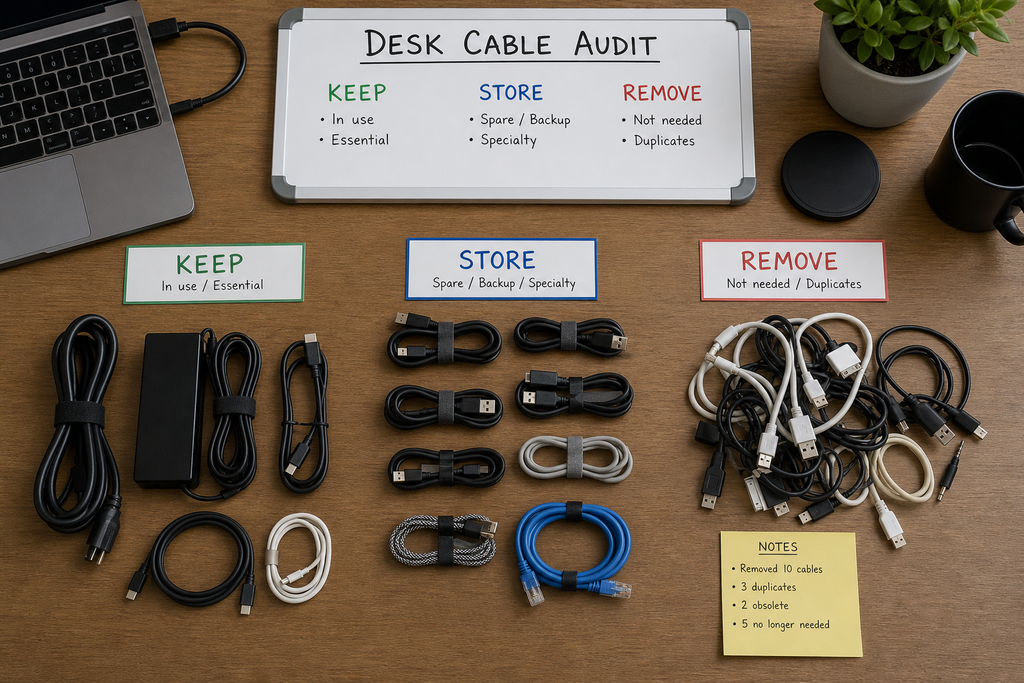
Start by unplugging cables you don’t recognize or haven’t used recently. Identify each remaining cable and connect it to the device it belongs to. This alone can reveal a surprising amount of unnecessary clutter.
Then group your cables into three simple categories:
- Keep: cables you use every day
- Store: cables you occasionally need
- Remove: cables you no longer need
You should also decide which cables need to stay accessible. Your phone charger probably shouldn’t be buried underneath the desk if you use it several times a day.
For example, on a 36-inch desk with a laptop, monitor, keyboard, and phone charger, you might keep the laptop and phone cables easy to reach while routing the monitor and power cables toward the back.
The goal isn’t to make everything disappear. It’s to figure out what deserves space on your desk in the first place.
No-purchase tip: Use simple labels or loosely group cables with what you already have before buying anything. You may discover that half the mess disappears just by sorting it.
Once you’ve identified the cables that actually matter, you can start getting them off the desktop and out of your way.
Get the Cables Off the Top of Your Desk
Cables don’t need to cross the middle of your workspace just because that’s where the device happens to sit. In a small setup, routing them toward the back edge can immediately make the desk feel less crowded.
Think about where each device sits and route the cable in that direction instead of sending everything toward one central point.
For example, if your laptop is on the left and your monitor is in the center, route the laptop charger toward the left-back corner and the monitor cables toward the rear. This keeps the visible cable paths shorter and leaves more usable workspace in front of you.
A few simple options can help:
- Adhesive cable clips
- Desk cable holders
- Simple cable channels
- Reusable cable ties
For renters, check whether adhesive organizers are designed for removable use and whether the surface is compatible before attaching them. [VERIFY PRODUCT SPECIFICATION]
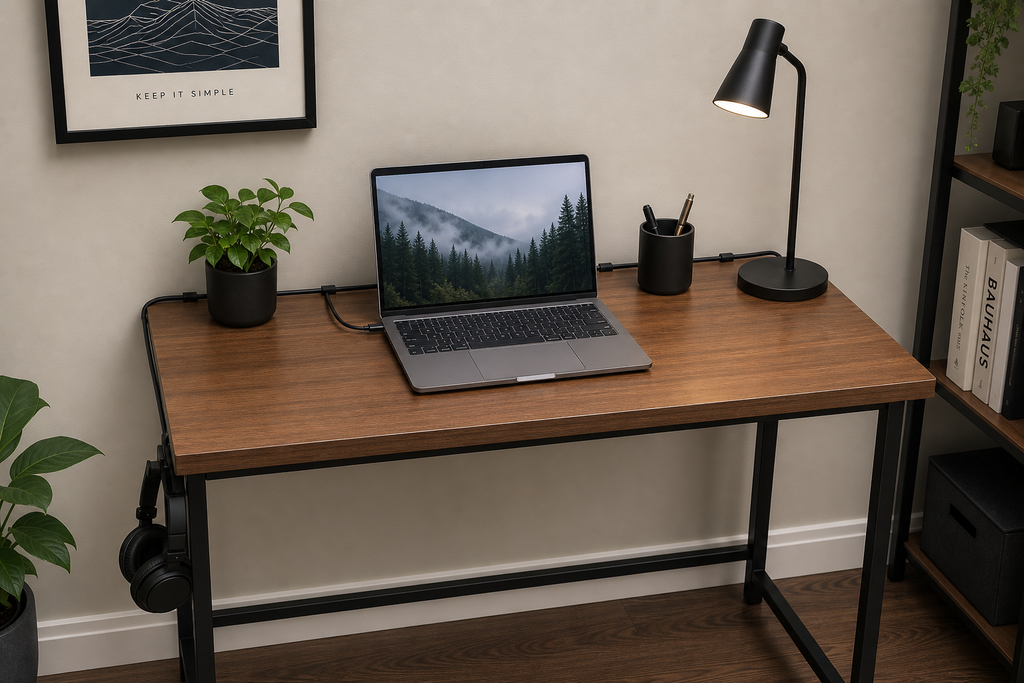
No-purchase tip: Temporarily bundle cables with reusable ties or another item you already own. This lets you test the routing before spending money on organizers.
Once the desktop is clear, the next step is dealing with the cables that still need to remain visible and easy to reach.
Use Under-Desk Cable Management to Free Up Floor Space
A power strip sitting on the floor with several cords spreading in different directions can make even a tidy desk look messy. It also makes cleaning underneath the desk much more annoying than it needs to be.
That’s where under desk cable management can make a noticeable difference.
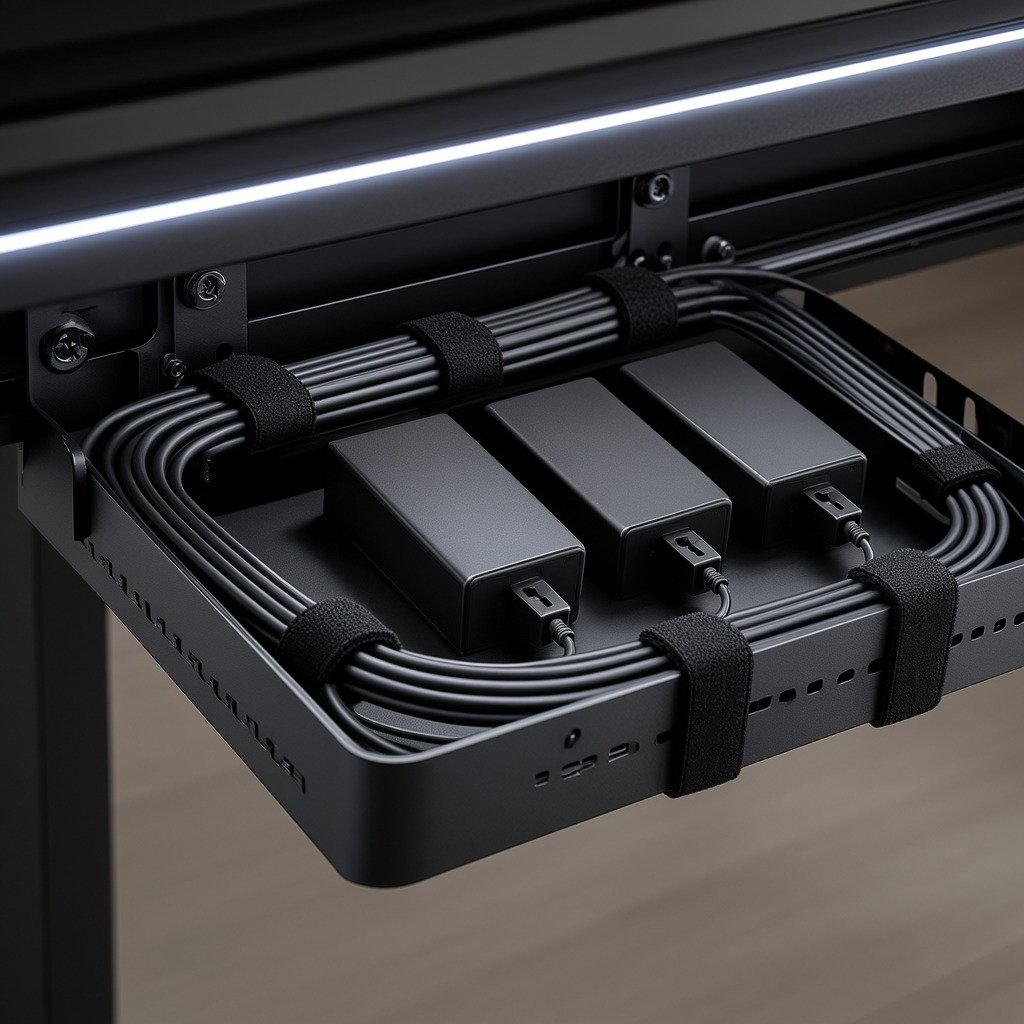
Depending on your setup, you could use an under-desk tray, cable basket, adhesive cable holder, or power-strip holder to move the mess underneath the desk.
For example, imagine a small apartment desk pushed against a wall. Instead of leaving the power strip on the floor, you could route it underneath the desktop and keep the excess cable length gathered near the back. The floor stays clearer, and your feet have more room.
Before choosing an organizer, check the available space underneath your desk. Pay attention to leg placement, drawers, and anything that could interfere with the tray or basket.
If you’re using an adhesive solution, make sure the mounting surface and product are compatible. [VERIFY PRODUCT SPECIFICATION]
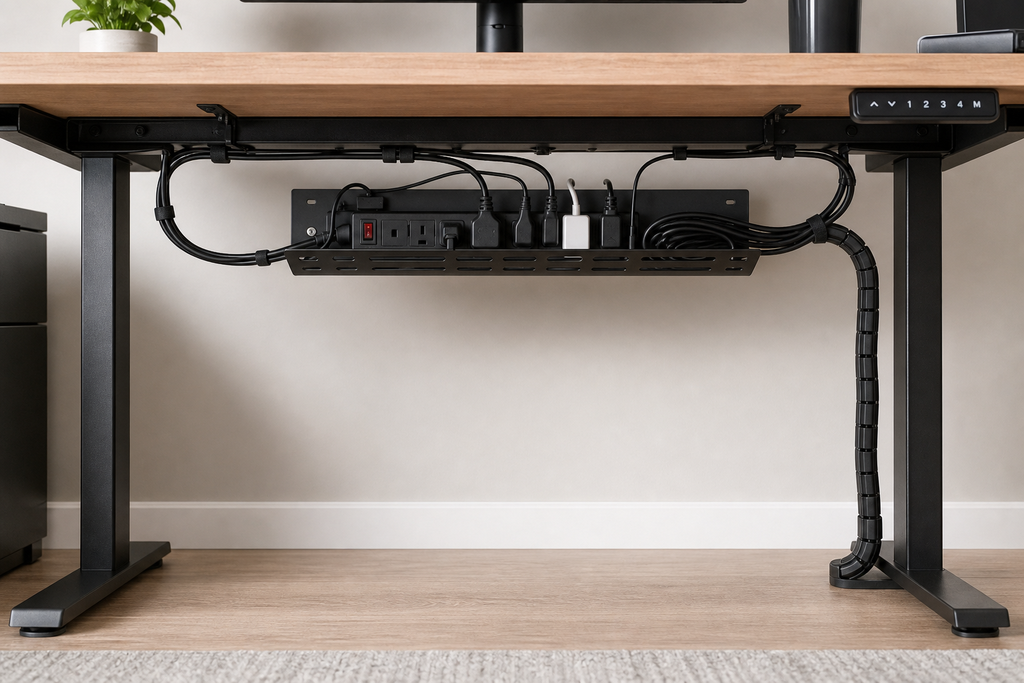
No-purchase tip: Gather excess cable length underneath the desk first and secure it temporarily. Even without a tray, shortening the visible cable paths can make a big difference.
With the cables safely underneath, it’s time to deal with the cords that still need to remain visible and easy to reach.
Hide the Messy Cables You Can’t Eliminate
Not every cable needs to disappear. Some simply need a cleaner route.
When several cords run from your desk toward the wall or outlet, they can become the most noticeable part of the setup. Cable sleeves, raceways, cord covers, and cable boxes can help reduce that visual mess.
For example, if three cables need to travel from a desk toward an outlet on a white wall, running them along one organized path can look much cleaner than having three separate cords hanging in different directions.
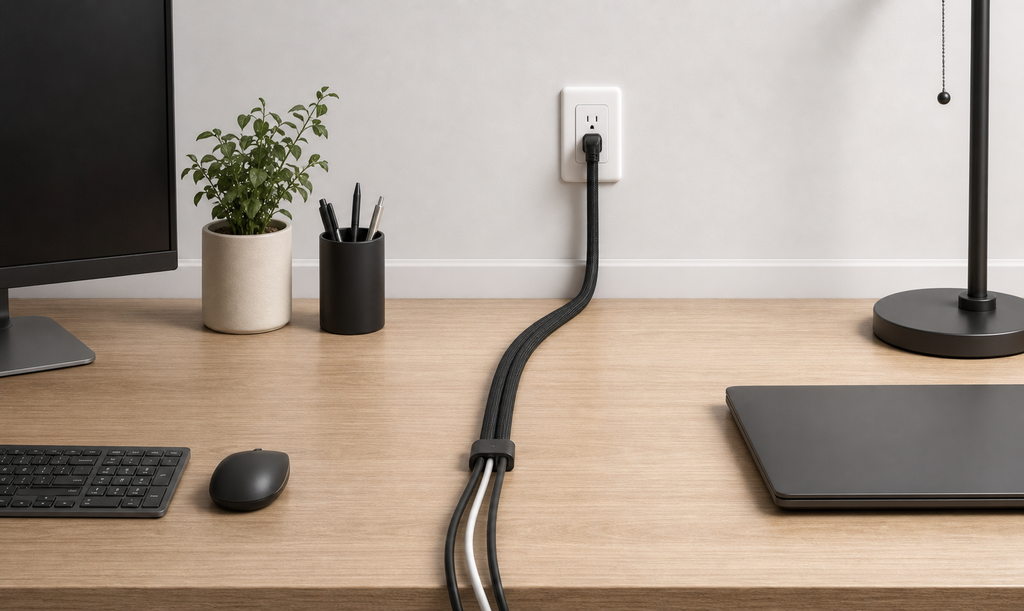
The important part is not to hide every wire just for the sake of hiding it. Focus on the cables that create the most visual clutter.
No-purchase tip: Align cables along the same route and keep unnecessary loops out of sight. Better routing can sometimes solve the problem without adding another organizer.
Now that the obvious cable clutter is under control, the next step is keeping your most-used chargers within easy reach.
Keep Your Most-Used Chargers Within Easy Reach
A desk can look beautifully organized and still be annoying to use. That’s what happens when frequently used chargers are hidden too well.
Create a small charging zone instead. Your phone cable might stay near the front or side of the desk, while your laptop charger routes from behind. Headphone cables can remain accessible if you regularly use them, while rarely needed charging cables can stay stored away.
For a tiny bedroom desk, this could be as simple as keeping one phone charger clipped to the side of the desk and routing the laptop cable behind the desktop. You don’t need a dedicated charging station unless you actually have several devices that need to charge together.
The goal is simple: hide the cables you rarely touch and keep the cables you use constantly within reach.
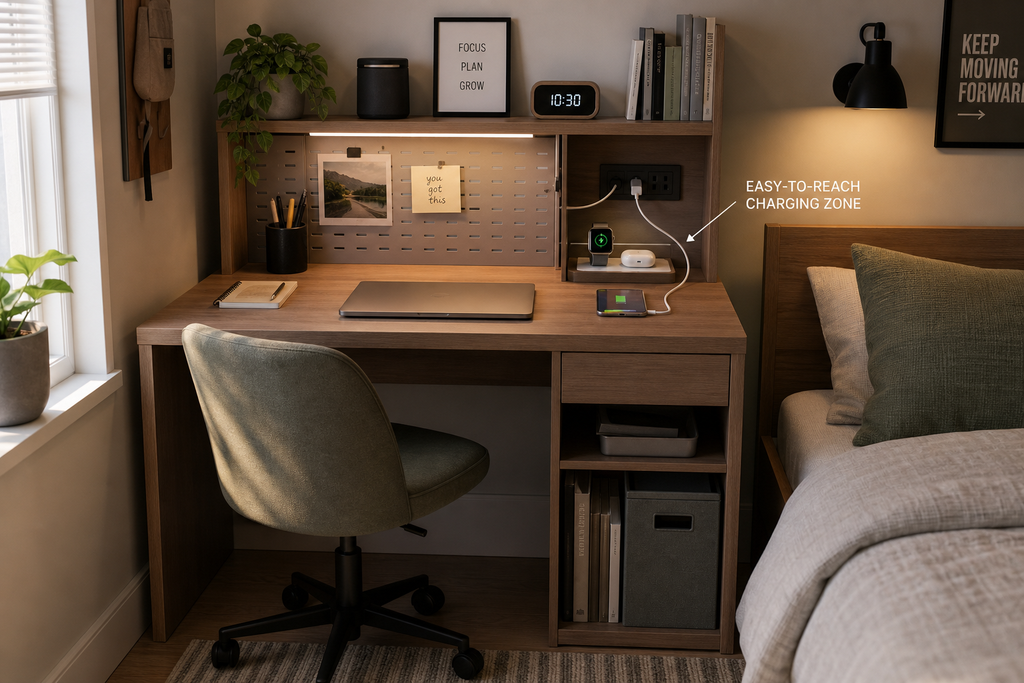
A magnetic cable clip, small cable holder, or charging organizer can help when cables repeatedly move out of position. Just choose the simplest option that solves the actual problem.
No-purchase tip: Put your existing charger exactly where your hand naturally reaches for it. Good organization should make your routine easier, not create extra steps.
The idea is simple: hide the cables you rarely touch and keep the cables you use constantly within reach. Next, let’s stop those loose cords from disappearing behind the desk.
Stop Cables From Falling Behind Your Desk
Few things are more annoying than reaching for your charger and realizing it has slipped into the narrow gap behind your desk.
This is where cable clips, weighted holders, adhesive anchors, or desk-edge organizers can make a small but useful difference. Their main purpose isn’t to make the desk look fancy. It’s to keep your most-used cords exactly where your hand expects them to be.
If your desk sits directly against a wall, attach the cable holder near the front or side edge rather than forcing yourself to reach behind the desk every time.
A small cable holder can be especially useful for one or two daily chargers. Check the product’s surface and cable compatibility before attaching it.
![Desk cable management using a cable holder to prevent a charger from falling behind the desk]](https://petchcrea.com/wp-content/uploads/2026/08/Desk-cable-management-using-a-cable-holder-to-prevent-a-charger-from-falling-behind-the-desk-1024x683.png)
No-purchase tip: If you already have removable clips or reusable ties, use one to secure your most annoying loose cable before buying anything new.
Once your frequently used cables stay put, you can start grouping the remaining cords without turning everything underneath the desk into one giant cable bundle.
Bundle Cables Without Creating a Giant Cable Blob
Bundling cables can make a desk look much cleaner, but there’s a catch: grouping everything together isn’t always better.
A giant bundle becomes difficult to identify, unplug, or move when you need to change your setup. Instead, group cables based on where they’re going or which devices they belong to.
For example, your monitor and desktop computer cables may travel in the same direction, so bundling them makes sense. Your phone charger, however, might need to stay separate because you unplug it regularly.
A good rule is to keep these separate:
- Frequently disconnected cables
- Temporary cables
- Cords going to different areas
- Chargers you use every day
Reusable Velcro ties, cable sleeves, or reusable straps can help keep groups together without permanently locking them into one giant bundle.
Think of it as organizing traffic rather than tying every car to the same truck.
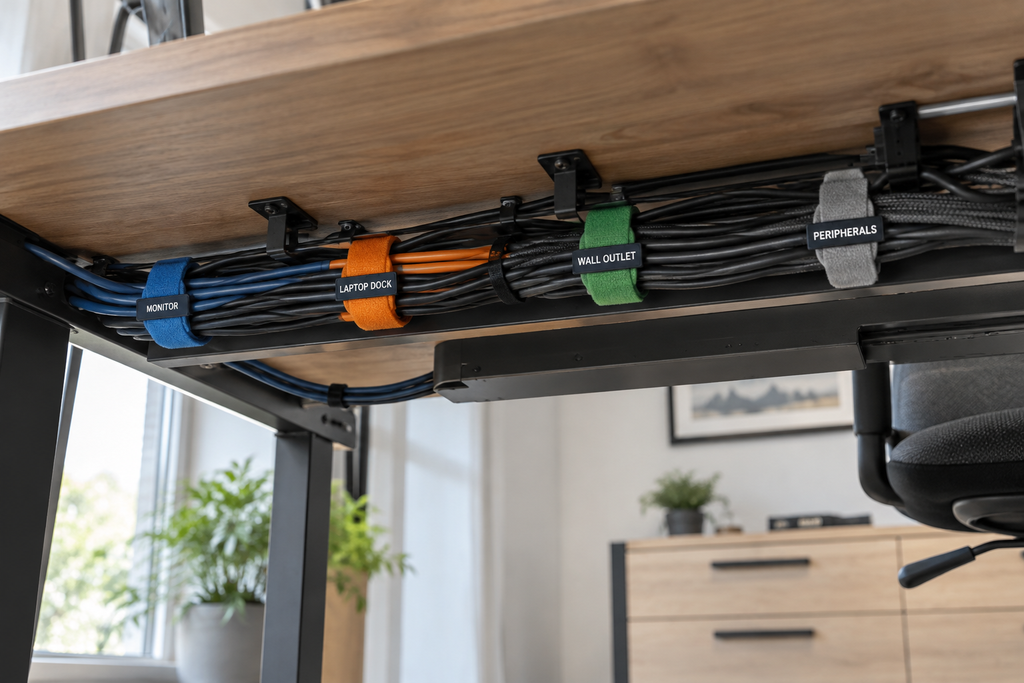
No-purchase tip: Sort your cables by destination before buying organizers. Once you know which cords actually belong together, you’ll know exactly what type of organizer you need—or whether you need one at all.
With the cables grouped intelligently, the next step is choosing a setup that actually fits the type of small desk you’re working with.
Choose a Cable Management Setup That Fits Your Desk
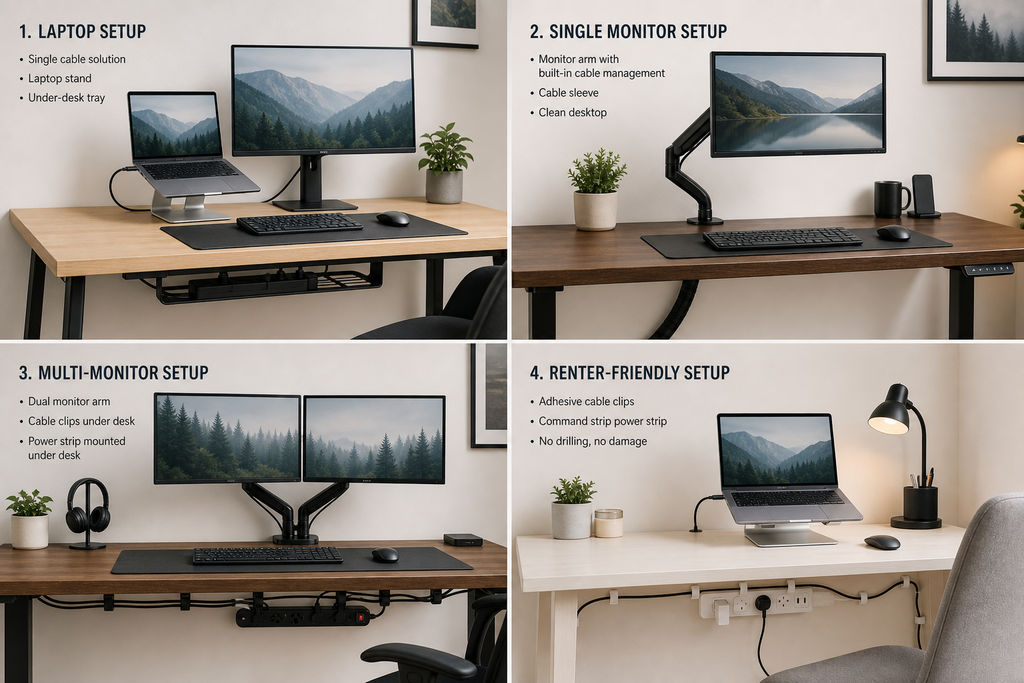
There isn’t one perfect cable-management system for every small desk. A laptop on a narrow table has very different needs from a multi-monitor home office.
Tiny Laptop Desk
Keep it simple:
- 1–2 cable clips
- A way to route the charger toward the back
- A small power strip if needed
- Minimal under-desk organization
You probably don’t need a large tray or complicated cable channel.
Laptop + Monitor
This setup usually benefits from clearer routing. Keep the laptop charger accessible while routing monitor and power cables toward the back.
Multi-Monitor Desk
Several monitors create more cables, so grouping by direction becomes more important. Labels, reusable ties, sleeves, and an under-desk tray can help keep the system understandable.
Renter-Friendly Setup
Choose removable clips, reusable ties, and non-permanent cable-routing options where possible. Avoid drilling simply because a cleaner solution exists.
Shared or Flexible Workspace
A desk that changes frequently needs flexible organization. Reusable ties and removable holders are useful because you can adjust the setup without rebuilding everything.

- High quality material:XHF Adhesive Cable Clips are manufactured from Strong Adhesive and PA66 nylon
- Widely used: USB Cable, Ethernet Cable, Outdoor String Lights, LED Strip Lights, Tachograph Cable, TV Cable, Desk and un…
- Size: Base 5/8″ x 5/8″, inner diameter of buckle 1/4″ x 2/5″,120pcs
No-purchase tip: Start with the simplest setup that fixes your biggest problem. Add more organization only when you discover you actually need it.
Once you’ve matched the system to your desk, it’s worth looking at the common mistakes that can make even an organized setup frustrating.
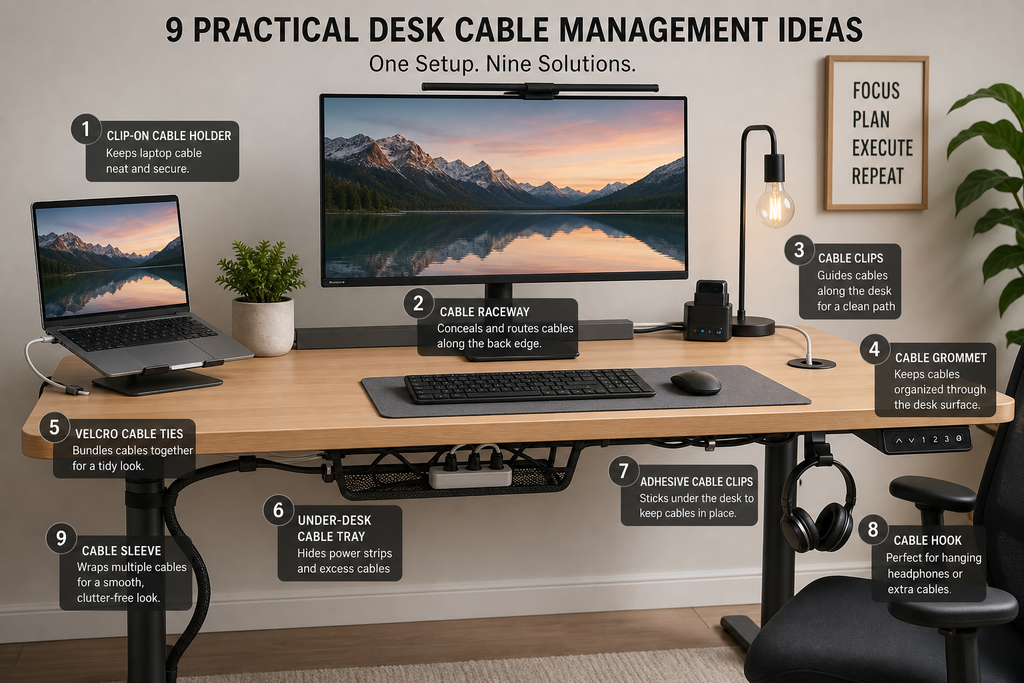
9 Desk Cable Management Ideas You Can Actually Use
You don’t need to reorganize every cable at once. Start with the ideas that fit your desk and your daily routine.
1. Route cables along the back
Keeping cables close to the rear edge of the desk creates a cleaner working area and makes the desktop feel less crowded.
2. Attach frequently used cables to the edge
Use a small holder or clip to keep your phone, headphone, or laptop cable where you can easily reach it.
3. Move the power strip underneath
Getting the power strip off the floor can free up foot space and reduce visible clutter.
4. Bundle cables by destination
Group cables that travel toward the same device or outlet instead of putting every cord into one bundle.
5. Label confusing cables
Labels can save time when you have multiple chargers, monitor cables, USB cables, or power cords that look almost identical.
6. Use a cable sleeve for grouped cords
A sleeve can make several cables traveling together look like one cleaner line, especially behind a monitor or computer.
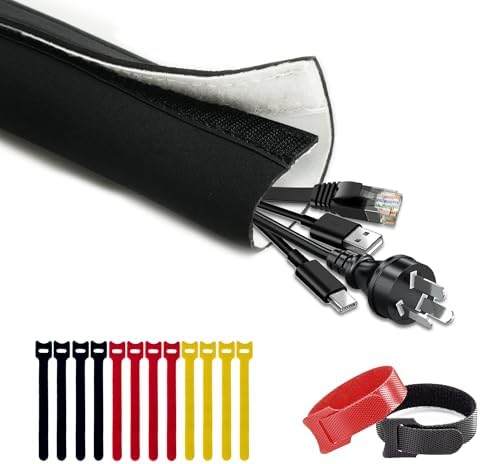
- Customizable Size & Branching: This 10-foot (120 inch) long, 1.5-inch diameter cable sleeve (flat width approx 5…
- Dual-Sided & Discreet: Features a reversible black/white design. The durable black side hides dirt for high-traffic ar…
- Anti-Fray & Secure Closure: Integrated Hook-and-Loop backing ensures a sturdy, intact fit even after cutting to size. …
7. Hide excess cable length underneath
You don’t need to cut cables. Simply route the extra length underneath the desk and secure it neatly.
8. Create a charging zone
Keep your most frequently used chargers in one accessible area instead of letting them spread across the workspace.
9. Store rarely used cables
If you only use a cable a few times a year, it probably doesn’t need to live on your desk.
No-purchase tip: Start with routing, sorting, and removing unused cables before buying organizers. Those three steps can make the biggest difference.
These ideas cover the basics, but there’s one more thing to consider: some common cable-management habits actually make a setup harder to maintain.
Common Desk Cable Management Mistakes to Avoid
Good desk cable management isn’t about hiding every wire at any cost. Some “organized” setups actually become more annoying to use. Here are a few mistakes worth avoiding.
Buying organizers before measuring the space
A cable tray or box can look useful, but if it takes up too much room underneath a small desk, you’ve simply moved the clutter somewhere else. Before buying anything, check the available width, depth, and leg clearance.
Hiding cables you constantly unplug
Your phone charger, headphones, or laptop cable shouldn’t require a treasure hunt every time you need it. Keep frequently used cables near the edge of the desk and hide only the ones you rarely touch.
Using permanent solutions in a rental
Drilling holes or using strong permanent adhesive may not make sense if you’re renting. Removable clips, reusable ties, and other non-permanent options can give you flexibility without committing the desk—or the wall—to anything.
Creating one giant cable bundle
A huge bundle looks tidy until you need to find one cable. Group cords by destination instead. Your monitor cables can stay together while a frequently used phone charger remains separate.
Ignoring the power strip
Organizing the desktop while the power strip and extra cords are still scattered across the floor only solves half the problem. If possible, move the power strip underneath the desk and route cables toward it.
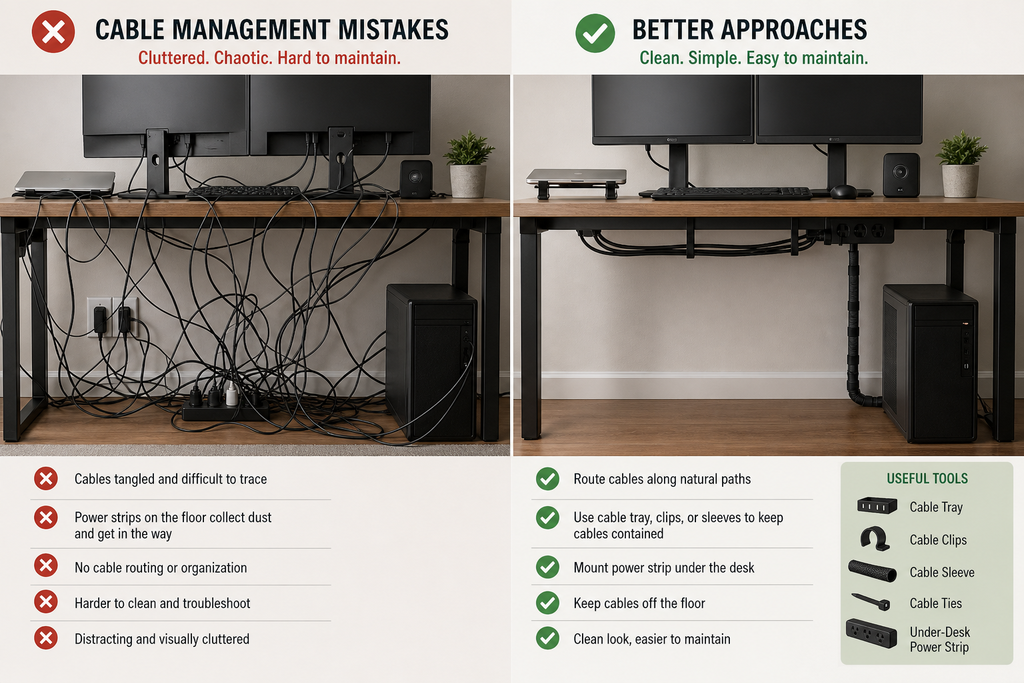
No-purchase tip: Before buying anything, unplug unnecessary cables, separate them by destination, and shorten the visible cable paths. You may be surprised how much cleaner the setup becomes without adding another organizer.
Once you’ve avoided these common mistakes, the next question is simpler: what do you actually need for desk cable management?
What Do You Actually Need for Desk Cable Management?
You don’t need a drawer full of cable organizers to get a cleaner desk. The right setup depends on where the cable clutter is coming from.
Start by identifying the problem, then choose the simplest solution that fixes it.
| Cable problem | Useful solution | Best for |
|---|---|---|
| Cables falling behind desk | Cable clips | Small desks |
| Too many cables crossing the desk | Cable channel | Multiple devices |
| Power strip on the floor | Under-desk tray or basket | Home offices |
| Several cables traveling together | Cable sleeve | Monitor/PC setups |
| Chargers disappearing | Cable holder | Daily charging |
| Confusing cables | Cable labels | Multi-device setups |
| Excess cable length | Reusable Velcro ties | Flexible setups |
| Visible wall cables | Cable raceway | Wall-facing desks |
For example, if your phone charger keeps falling behind a small desk, you probably don’t need a full cable-management system. A small cable holder may be enough. If you have a monitor, laptop, speakers, and several power cables running in different directions, a channel or sleeve can make more sense.
No-purchase tip: Try routing and grouping your existing cables first. You may discover that you only need one or two simple organizers instead of a complete setup.
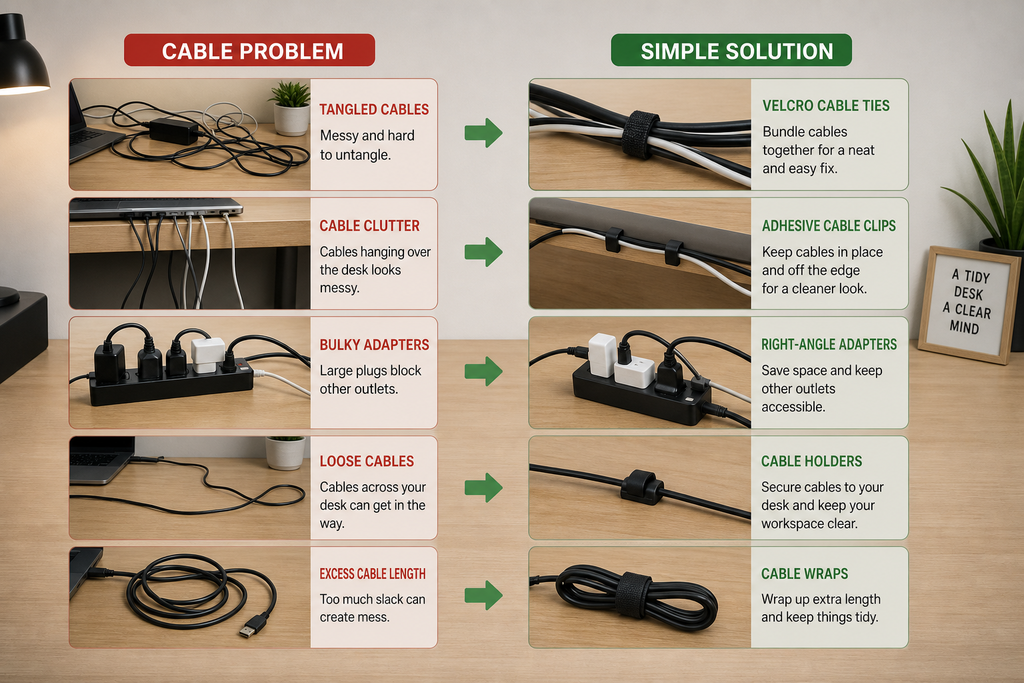
The goal isn’t to own more cable-management products. It’s to make your small workspace easier to use, clean, and maintain. Next, let’s put everything together into a simple setup you can actually use.
The Simplest Desk Cable Management Setup for a Small Space
You really don’t need a complicated system to make cable clutter disappear from a small desk. Start with the few cables that cause the biggest problems, then build from there.
For a tiny desk
- 2–4 cable clips
- Reusable cable ties
- One small cable holder
- Power strip positioned underneath the desk
That may be enough for a laptop desk or compact bedroom workspace. Keep frequently used chargers accessible and route everything else toward the back or underneath.
For a larger home office
The key is choosing based on your actual setup rather than buying everything at once. A tray might be useful with several devices, while a laptop-only desk may not need one at all.
![Simple desk cable management setup for a small home office]p](https://petchcrea.com/wp-content/uploads/2026/08/Simple-desk-cable-management-setup-for-a-small-home-officep-1024x683.png)
No-purchase tip: Before spending money, remove unused cables and shorten the visible cable paths. You may already have most of what you need.
You don’t need a $100 cable-management makeover to make a small desk feel better. A few thoughtful changes can be enough—and that’s the whole point of smart small-space living.
FAQ About Desk Cable Management
What is the easiest way to organize desk cables?
Start by removing unused cables, then group the remaining cords by device or destination. Use simple clips or reusable ties to keep them in place.
How do I hide cables under a small desk?
Route cables toward the back and secure excess length underneath. A small tray or basket can help when several cords and a power strip need to stay off the floor.
How do I stop cables from falling behind my desk?
Attach frequently used chargers to the desk edge with cable clips or holders. Keep them where your hand naturally reaches.
Is a cable tray worth it for a small desk?
It can be useful if you have several devices and a messy power strip. For a simple laptop setup, clips and ties may be enough.
How do I organize desk cables without drilling?
Try removable cable clips, reusable ties, adhesive organizers, or a freestanding cable basket. Check the product’s surface compatibility before attaching anything.
Give Your Desk a Little Breathing Room
Good desk cable management doesn’t mean hiding every wire or buying a complete organizer system. It simply means putting each cable where it makes sense: frequently used cords within reach, extra length underneath, and rarely used cables out of the way.
The most useful place to start is the easiest one—pick the cable that annoys you most and fix that first. Once that small problem is solved, the rest usually becomes much easier.
And remember, every small space is different. A laptop desk may need only a few clips, while a multi-monitor setup might need a tray and more structured routing.
If you’re working with limited space, you may also like Small Home Office Ideas That Make the Most of Your Space, Laptop Stand vs. Monitor Stand: Which is Best for a Small Desk?, or Laptop Stand vs Monitor Stand: The Complete 2026 Buyer’s Guide.
So, which cable is bothering you most right now?