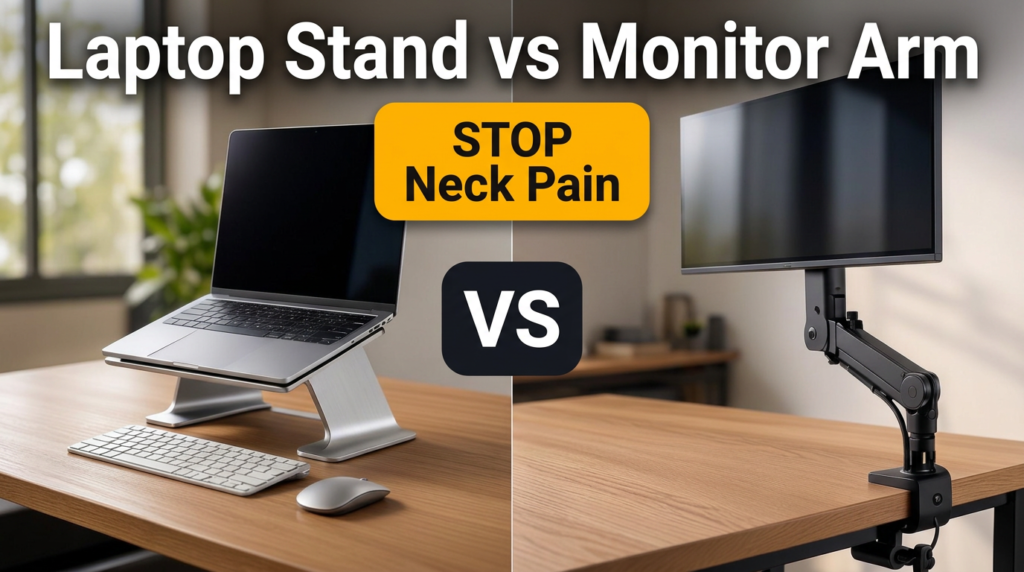
Laptop Stand vs Monitor Stand: The Complete 2026 Buyer’s Guide
If you sit behind a desk for hours at a time, you are likely no stranger to neck tightness, shoulder stiffness, or lower back pain at the end of the day. Often, we blame our chairs or our workloads, but the real culprit is sitting right in front of our eyes: our screen height. A display that is positioned just two inches too low can turn a beautifully organized office into a daily source of muscle tension and long-term strain.
When you set up a home office or upgrade your corporate workspace, one of the most important decisions you will make is how to support your display. This choice usually comes down to a classic battle of design and utility: laptop stand vs monitor stand.
Both of these popular office accessories are designed to solve the exact same ergonomic problem—elevating your screen so you can work comfortably and safely. However, they do it in completely different ways, and they impact your desk layout, your budget, and your posture in very distinct patterns.
Should you lift the portable computer you carry with a flexible ergonomic laptop stand? Or is it time to reclaim your desk surface, mount an external display, and float your screen in three dimensions with an adjustable monitor stand riser or dynamic arm?
This practical, human-first guide cuts through the marketing fluff. We will look at the exact body mechanics, hardware specifications, and desk safety rules that define the laptop stand vs monitor stand debate. By the end of this guide, you will know exactly which display support system matches your lifestyle, protects your physical health, and keeps your desk safe from structural damage.
The Biomechanical Reality: Why Screen Height Dictates Your Posture
To understand why choosing between a laptop stand vs monitor stand is so critical, we must first look at what happens to the human body when we look at a poorly positioned screen.
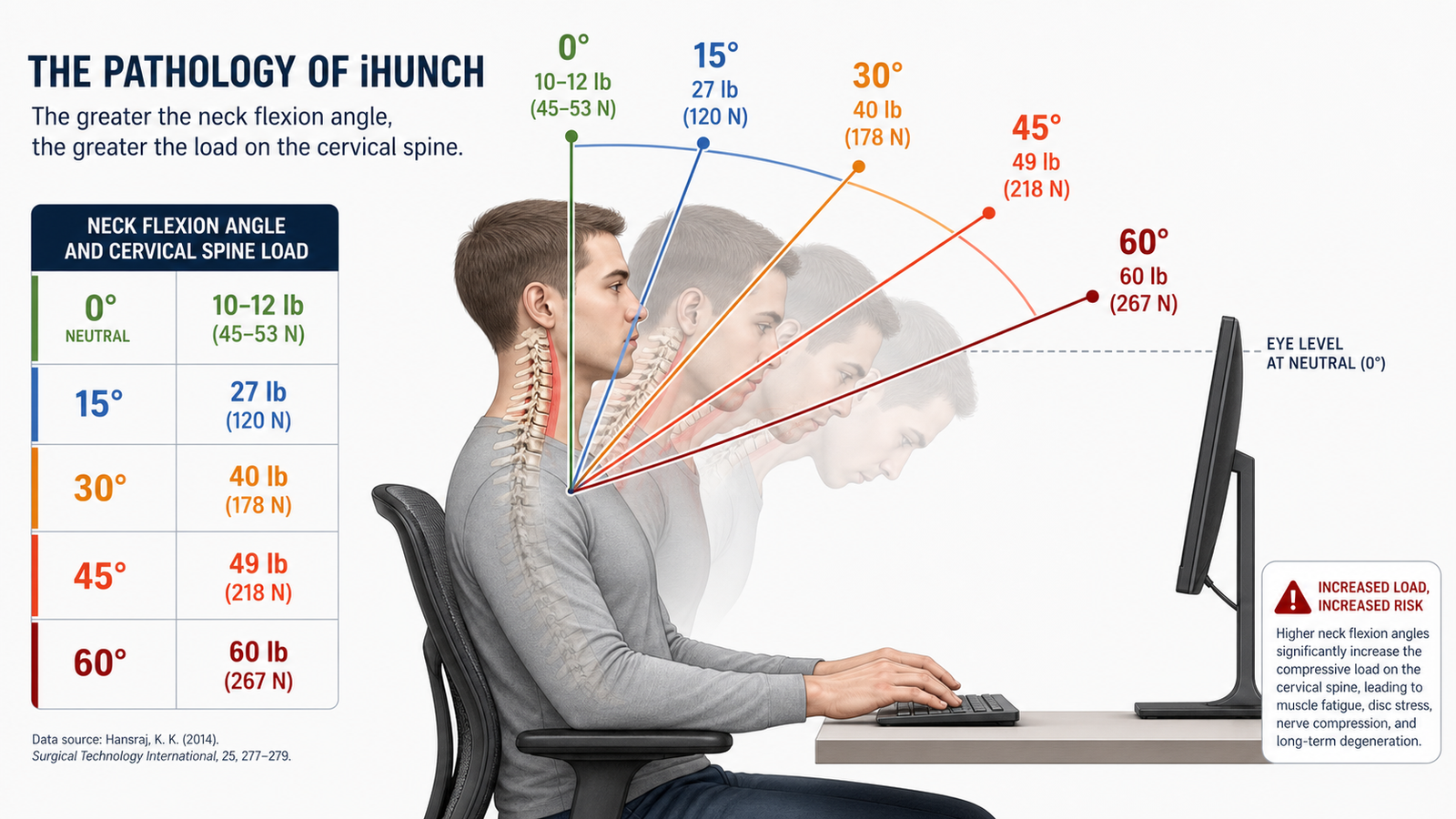
Improper alignment of displays forces us into sustained, unnatural postures. The most common physical problem associated with low screens is Forward Head Posture (FHP), which office workers often refer to as “iHunch”. FHP happens when your head slants forward, moving away from the body’s natural gravity line that runs vertically from your shoulder joint up to your ear canal.
The Science of Neck Strain and Cervical Load
In a healthy, neutral posture, your head sits directly above your shoulders. In this position, it exerts a static gravitational load of about 10 to 12 pounds (roughly 44.5 to 53.4 Newtons) on your cervical spine.
However, as your neck tilts forward to track a screen that sits too low, the effective load experienced by your neck muscles, ligaments, and joints increases exponentially. This happens because the distance between the weight (your head) and its support base (your spine) widens, creating leverage.
Physical modeling shows how quickly these forces scale up as you bend your neck:
- 0° Flexion (Neutral Posture): Your head feels like its actual weight of 10 to 12 lbs (44.5–53.4 N).
- 15° Flexion: The weight experienced by your neck jumps to 27 lbs (120.1 N). This is the point where you lose your spine’s natural curve and begin tilting your vertebrae forward.
- 30° Flexion: The force climbs to a staggering 40 lbs (177.9 N)—a four-fold weight increase! At this angle, the relative risk of developing chronic neck pain more than doubles.
- 45° Flexion: The force reaches 49 lbs (218.0 N), causing rapid and painful fatigue of your upper back and shoulder muscles.
- 60° Flexion: Your neck supports a crushing 60 lbs of force (266.9 N). This extreme strain can completely flatten your cervical spine, lead to a humped upper back, and cause chronic muscular imbalances.
To measure this strain, clinicians look at the Craniovertebral Angle (CVA)—the angle formed by a horizontal line passing through your C7 neck bone and a line extending to the tragus of your ear. Healthy individuals manifest a CVA of 48.7 degrees or higher. When your CVA drops below 48.7 degrees, you have entered the Forward Head Posture zone.
Clinical testing proves that correcting this alignment has immediate benefits. In controlled studies, applying a simple 0.5 kg head-weight correction device over an 8-week period restored the average CVA from a strained 49.62 degrees to a healthy 52.10 degrees. At the same time, the local pain threshold of the hyperactive levator scapulae (the muscle that runs down the side of your neck) increased from 30.71 to 36.89 kg/cm². This clinical breakthrough proves that elevating your display directly reduces muscle tension, relieves pain, and protects your spine.
What is a Laptop Stand? Portability, Airflow, and Key Models
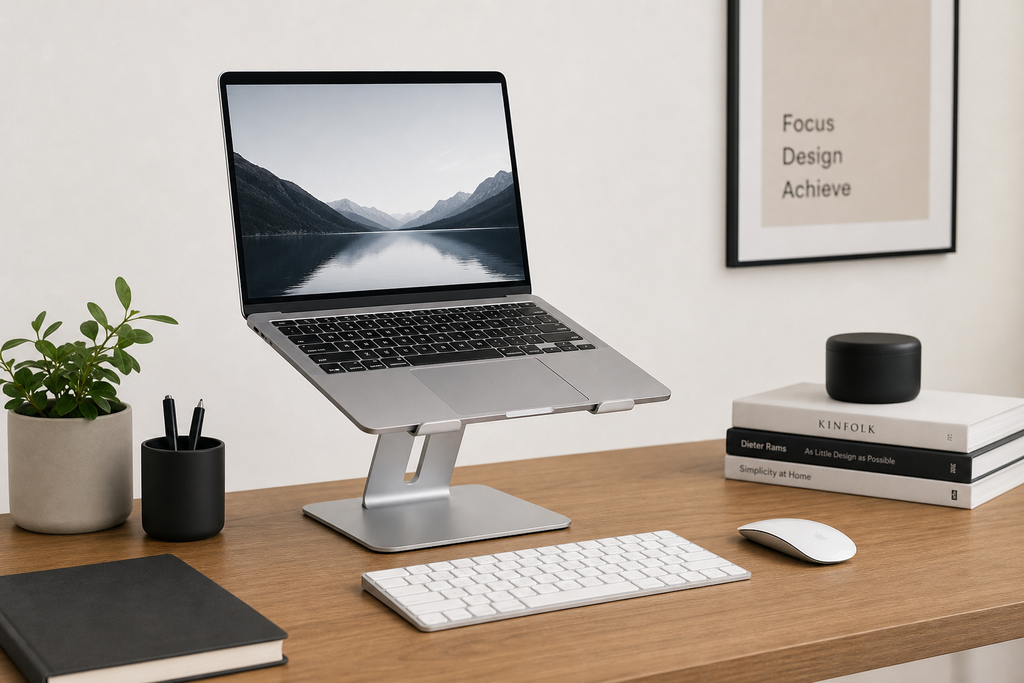
A laptop stand is a workspace accessory designed specifically to raise your portable computer off the desk surface. In the comparison of a laptop stand vs monitor stand, laptop stands are the champions of mobility and quick setups.
Stationary vs. Portable Laptop Stands
Laptop stands generally fall into two categories: static metal risers for your home desk, and lightweight, collapsible travel stands that slide easily into your backpack.
1. Stationary Desktop Risers
These stands are built from solid metal and are designed to stay on your desk. They offer incredible stability and look beautiful alongside modern electronics.
- Rain Design mStand: The gold standard for stationary desk risers. Forged from a single, sturdy piece of 2.5 mm thick anodized aluminum, the mStand lifts your laptop display by a fixed 5.9 inches (150 mm). It weighs 3 pounds (1.46 kg), holds up to 15 lbs, and features a 2-inch rear circular hole for routing cables. Because it is a thick, single piece of metal, the aluminum act as a giant passive heatsink, helping cool your laptop during heavy use.
- Twelve South Curve: A highly aesthetic, minimalist dual-arm stand made of bent aluminum. It lifts your laptop screen 5.8 inches off the desk, maximizing airflow around the lower intakes, though it lacks built-in cable management.
- Lamicall 360-Rotating Ergonomic: A heavy aluminum riser mounted on a central cylindrical pillar. This pillar allows the laptop plate to spin 360 degrees horizontally in either direction, making it the perfect tool for collaborative meetings, client presentations, or sharing screen information. It features soft rubber pads to protect your notebook, but its bulk makes it unsuitable for travel.

- Raises notebook screen height to eye level for better ergonomics (5.9 inches).
- Single piece aluminum design provides solid stability and acts as a heat sink to cool laptop
- The back cable management hole is 2 inches in diameter. Cable organizer behind routes wires neatly
2. Collapsible Travel Stands
If your work travels with you, collapsible laptop stands made of high-strength composites or lightweight aluminum are essential tools.
- The Roost V3 Stand: The premier portable laptop stand on the market. Constructed from high-strength carbon-fiber-reinforced polymer composites, it weighs only a few ounces and folds down into a tiny, ultra-compact 1″ x 1.5″ x 13″ package that easily slides into a laptop sleeve. It features a smart, multi-tier mechanical latch system that lets you choose between three manual height settings while on the go.
- iVoler Adjustable Aluminum Stand: A fantastic budget-friendly travel stand. Made of sleek anodized aluminum, it folds completely flat and expands to offer six manual tilt and angle adjustments. It also features adjustable width, allowing it to double as a stand for cell phones, tablets, or heavy textbooks. However, unlike the Roost, it merely tilts your laptop up rather than raising the entire device off the desk surface.
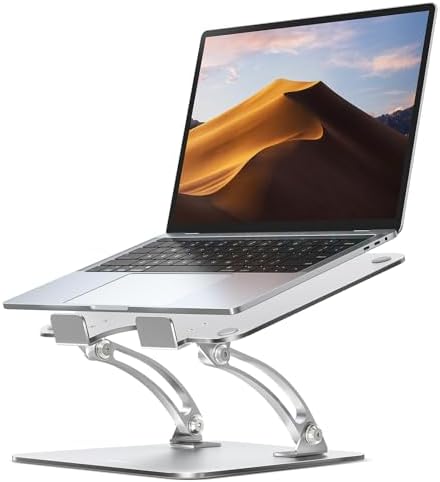
- Ergonomic Posture Correction: Designed to elevate your laptop to the perfect eye level, this adjustable laptop stand sig…
- Unshakable Dual-Rod Stability: Unlike single-hinge models, our stand features a highly engineered dual-support rod mecha…
- Advanced Thermal Cooling Panel: Maximize your device’s performance. The unique geometric heat-vent design on the upper p…
The Integrated Keyboard Trap: Why Elevation Demands External Input Devices
While adjustable laptop stands are incredibly convenient, they carry a major, hidden ergonomic trap: the physical link between the screen and the keyboard.
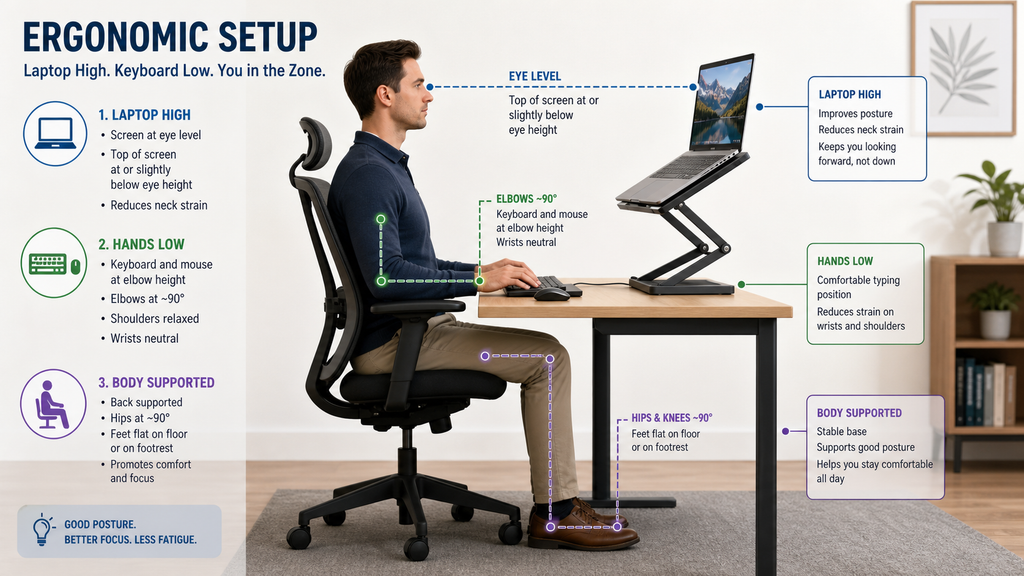
When your laptop sits flat on a desk, the screen is too low, forcing your neck into a strained forward tilt. However, the moment you put your notebook on an ergonomic laptop stand to raise the display to eye level, the keyboard rises right along with it.
Trying to type directly on an elevated laptop keyboard is a recipe for physical strain. It forces your wrists to bend sharply upward (severe extension) and shrugs your shoulders high, compressing the delicate nerves and blood vessels inside your arms. Over time, this repetitive strain can accelerate the onset of occupational injuries like tendinitis, cubital tunnel syndrome, and carpal tunnel syndrome.
The Golden Rule of Laptop Ergonomics
If you use a laptop stand for more than short, temporary sessions, you must use a separate external keyboard and mouse. This allows you to separate the display (which should be high and far) from your typing controls (which must remain low and close).
What is a Monitor Stand or Riser? Simplicity, Footprints, and Storage
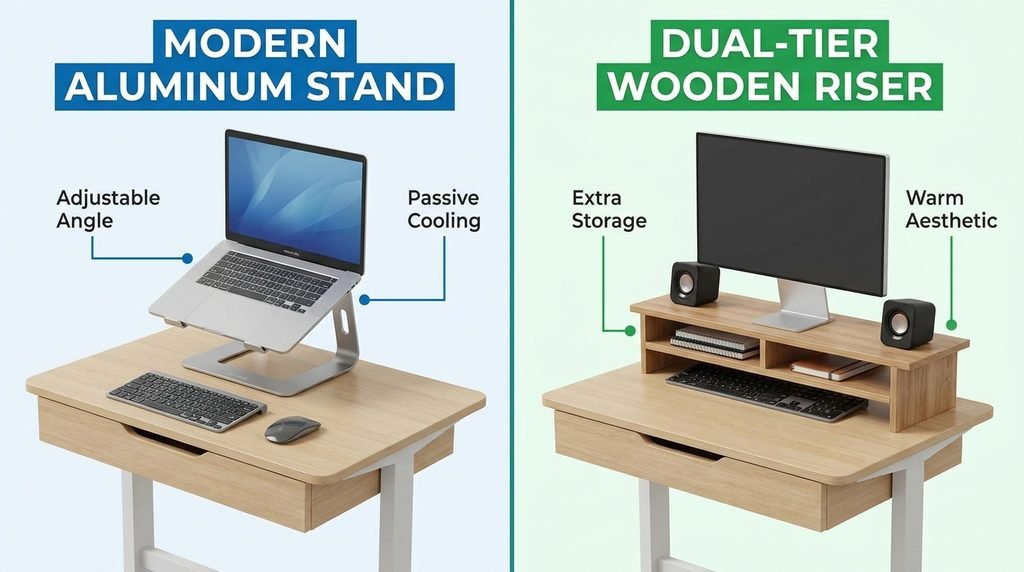
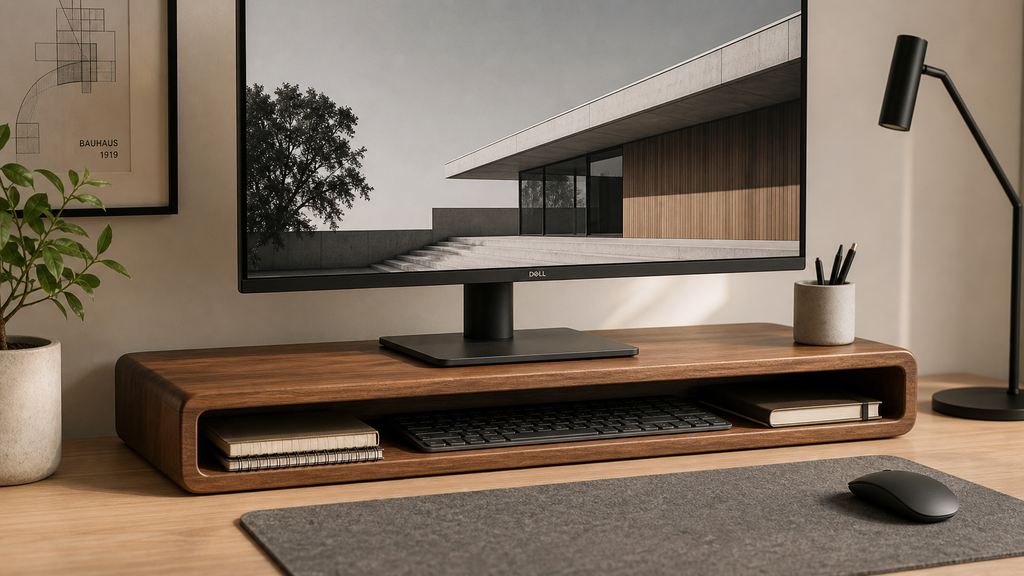
A monitor stand (often called a computer monitor riser or monitor riser) is a platform that sits flat on your desk to lift your external screen. Your monitor’s original factory base sits directly on top of this raised shelf.
In the laptop stand vs monitor stand comparison, risers represent the absolute peak of structural simplicity and stability.
The Strengths of a Solid Monitor Riser
- Zero-Installation Setup: You do not need to deal with C-clamps, heavy steel brackets, or check for VESA mounting holes. You simply place the riser on your desk, put your monitor on top of it, and get right to work.
- Heavy Weight Capacity: Unlike mechanical arms, which have strict weight limits, a solid wood or metal monitor stand can easily hold heavy legacy displays, giant all-in-one screens, or ultrawide monitors up to 40 lbs without any risk of drifting or sinking over time.
- Integrated Storage: Many premium risers—such as a wood monitor stand riser or a grovemade monitor riser—feature open slots, built-in drawer organizers, or hollow cavities. This allows you to slide your keyboard, phone, or tablet completely out of sight when you need open writing space.
The Real Trade-off: Footprint and Depth
The primary drawback of a desktop monitor stand riser is its desk footprint. A typical riser consumes a fixed, rectangular “dead zone” on your desk surface, usually around 9 x 11 inches (23 x 28 cm).
Furthermore, because the riser sits directly on your desktop, it restricts how far back you can push your screen. On shallow desks (under 24 inches deep), a monitor base can push the display uncomfortably close to your face, causing visual fatigue and taking up valuable writing space.
The Articulated Monitor Arm: Unlocking Space and Dynamic 3D Adjustability
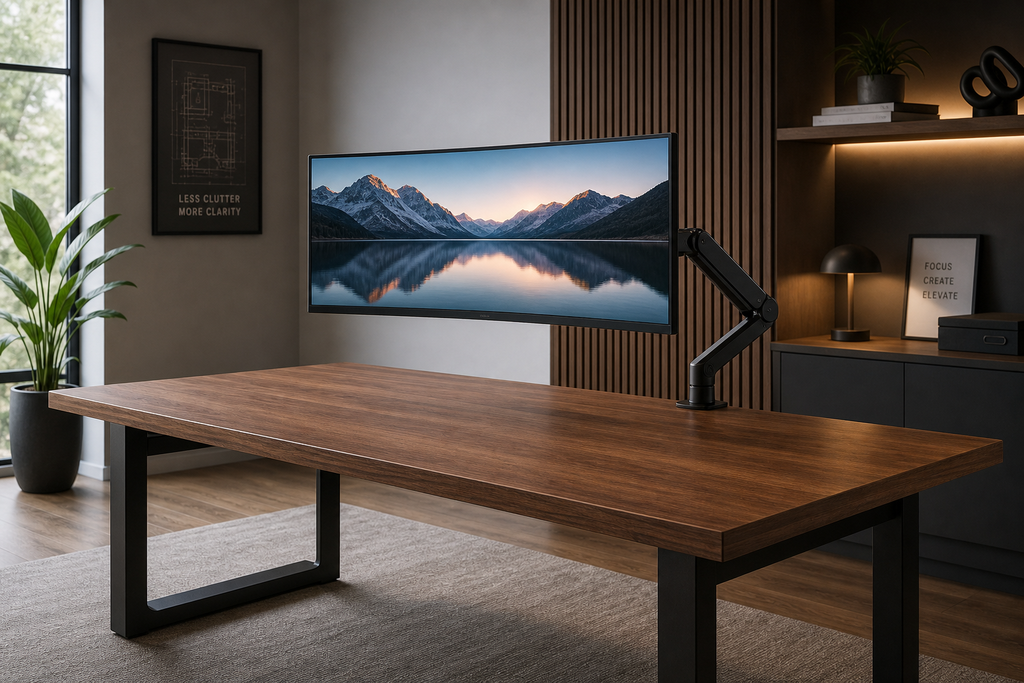
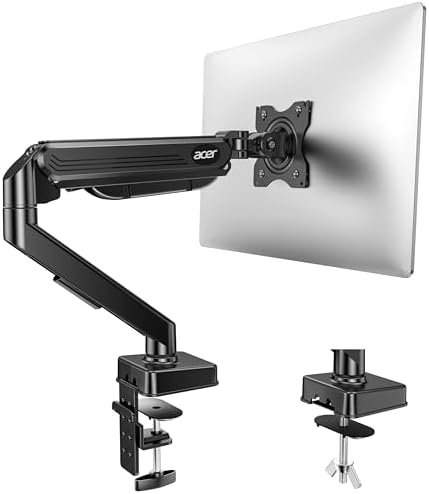
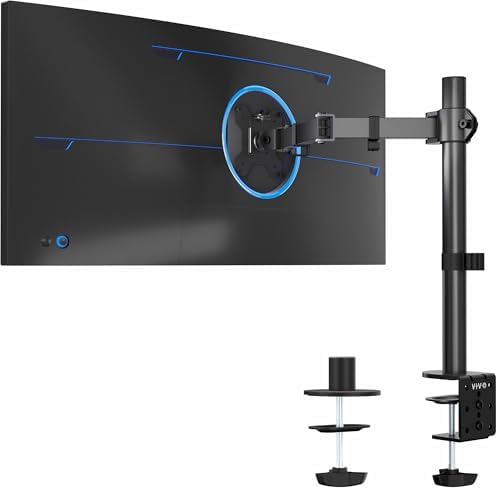
If you are looking to move past static, unyielding stands, an articulated monitor arm is the ultimate workstation upgrade. A monitor arm replaces your screen’s original plastic base with a mechanical metal arm that clamps securely to the rear edge or passes through a pre-drilled grommet hole.
The Mechanical Magic of Gas Springs
Premium monitor arms utilize pressurized gas-spring cylinders or heavy mechanical tension joints to balance the exact weight of your screen. Once you calibrate the internal spring tension to match your monitor’s weight, the display essentially floats in three dimensions. You can effortlessly pull the screen closer for fine detail work, push it away to clear writing space, adjust its height, tilt it up or down, or spin it 90 degrees into a vertical layout for coding or long spreadsheets.
- Humanscale M2 Pro: A premium, modular single arm crafted from recycled aluminum and steel. It supports displays from 5 to 22 lbs, offering a smooth 12 inches of height adjustment and 22 inches of depth reach.
- Humanscale M8 Pro: Designed for heavy-duty setups. It utilizes high-grade steel and polymer linkages to support displays from 9 to 50 lbs, keeping giant curved ultrawide screens perfectly stable.
- Alberenz Single Monitor Arm (with USB): A highly popular mid-range option with gas-spring mechanics and integrated USB-A and USB-C pass-through ports built directly into the clamp base. It supports screens up to 40 inches and makes routing cables incredibly tidy.

Why Standing Desk Users Need an Arm
For users with a height-adjustable standing desk, a dynamic arm is a game-changer. When you transition from sitting to standing, your relative posture, shoulder angle, and focal distance change.
A fixed desktop monitor riser forces you to accept whatever screen height you had when sitting. A gas-spring monitor arm allows you to fine-tune your screen’s height and angle in seconds as you stand, maintaining perfect eye-level alignment in both modes.
(To check official federal guidelines on viewing angles, focal distance, and sit-stand clearances, consult the OSHA Computer Workstations eTool.)
Desk Engineering: Will a Monitor Arm Break Your Desk?
While the floating look of an articulated arm is highly appealing, mounting one is not just an aesthetic choice—it is a serious structural engineering challenge.
When you attach an arm to the edge of your desk, the weight of the screen combined with the length of the arm creates a powerful lever. This physical force is modeled as rotational torque (T = F × d). When you extend a heavy monitor far forward, you multiply the downward crushing force concentrated on a tiny, three-inch section of your desk’s edge.
The Hollow-Core Danger (IKEA Linnmon & Lagkapten)
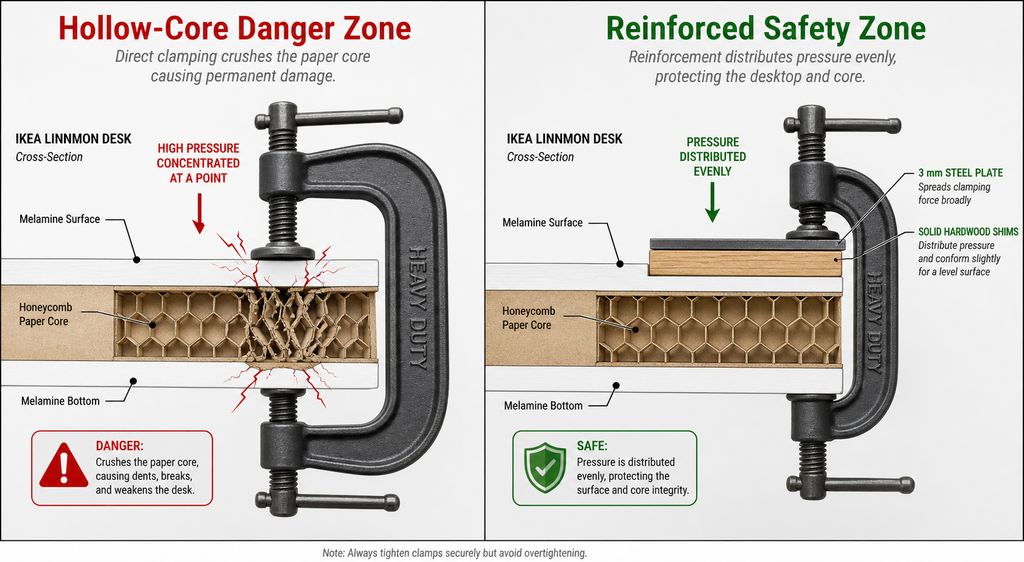
Many modern, affordable desks—most notably the popular IKEA Linnmon, Micke, or Lagkapten series—are not solid wood. Instead, they use a hollow-core honeycomb paper filling sandwiched between two very thin sheets of compressed wood fiberboard.
Clamping a high-torque monitor arm directly onto a hollow-core desk often leads to three common failures:
- Edge Crushing and Surface Denting: The metal clamp plates compress the fragile cardboard core, cracking the outer wood laminate and leaving permanent, ugly divots.
- Material Creep and Tilting: Over weeks of sustained load, the internal wood fibers slowly deform under pressure (a physical process called “creep”). Your mounting pole will begin to lean forward (tilting from a straight 90 degrees to a sagging 75-80 degrees), making your setup highly unstable.
- Catastrophic Punch-Through: Under the leverage of a heavy or extended screen, the C-clamp can shear completely through the thin fiberboard shell, leading to a sudden collapse that smashes your monitors onto the floor.
The Desk Safety and Reinforcement Protocol
To safely install a clamped arm on engineered wood, particleboard, or hollow-core desks, follow these safety steps:
- Install Steel Reinforcement Plates: Placing heavy-gauge, 3 mm thick steel reinforcement plates on both the top and bottom of your desktop is the single most effective safety upgrade. These plates distribute the C-clamp’s crushing force over a much wider surface area, preventing core collapse.
- The Wood Shim “Sandwich”: You can also sandwich your desktop using solid wood shims. Placing high-density plywood, solid poplar, or simple bamboo chopping boards between the metal clamp pads and the desktop transfers the torque load safely to the sturdier outer desk frame.
- The Desktop Thickness Rules: As a rule of thumb, 18 mm (approx. 0.7 inches) is the absolute minimum thickness for clamping light monitor arms, while 25 mm or more is the preferred benchmark for heavy or dual-monitor configurations.
- The Glass Desk Ban: Never clamp a monitor arm directly onto a tempered glass or marble desk. The focused pressure can cause the entire sheet to instantly shatter. Glass desk users should use freestanding stands with weighted bases, wall stud mounts, or grommet bolting through pre-drilled holes using rubber protective pads.

- VIVO Reinforcement Brackets: We create affordable solutions designed with creativity and quality to transform your uniqu…
- Compatibility: This product is designed for C-clamp mounting, and fits most types of C-clamps on the market. An anti-sli…
- Increased Stability: This reinforcement mount lowers centralized desk stress by dispersing the load across more surface …
Device performance: Passive Stands vs. Active Cooling Pads
Many people searching for best laptop desk stands are also trying to keep their computers from running slowly or overheating during intense tasks like video editing, coding, or gaming. When your laptop’s internal components near their maximum heat limit, the computer triggers thermal throttling. This self-protective mode automatically slows down your processor to reduce heat, leading to sudden lag and stuttering performance.
The Passive Air-Gap Advantage
Most modern laptops intake cool air through vents located on the bottom of the chassis and exhaust hot air through rear or side vents. When a laptop sits flat on a desk, the tiny rubber feet provide minimal clearance, restricting passive airflow. Using a laptop on soft surfaces like a bed, blanket, or couch is even worse, as these materials can block bottom intakes completely, causing rapid overheating.
Elevating your laptop on an open, metal aluminium laptop stand solves this passively. By expanding the ambient air gap under your device, a passive stand increases cool air volume around the intakes. Testing reveals that simply raising your laptop on a passive stand can lower CPU temperatures by 11% and GPU temperatures by 7.7% (representing a raw drop of 3°C to 8°C) silently and reliably.
The Truth About Active Cooling Pads
While active cooling pads with built-in electric fans can reduce temperatures by 8°C to 20°C, they carry a major design flaw: intake grille mismatch.
If a cooling pad’s solid frame or fan placement blocks your laptop’s specific intake grilles (such as on HP Victus or MSI Vector layouts), it can actually starve the internal fans of air. This can raise internal temperatures despite the pad’s active fans.
Furthermore once your CPU falls safely below its thermal throttling limits (typically 95°C to 105°C), lowering the temperature further does not yield higher benchmark scores or processing speed. Processing performance is then restricted by your computer’s power limits (TDP) rather than heat. For most users, a passive, open-grid aluminum stand delivers excellent, noise-free cooling without the clutter of extra cords.
The “Workspace Audit” Decision Framework
Choosing between a laptop stand vs monitor stand should not be a guessing game. Run through this simple, 5-question decision framework to find your ideal match:
| The Setup Question | Answer: YES | Answer: NO |
|---|---|---|
| 1. Is your display screen too low right now? | You need to elevate your display. Proceed to Question 2. | Your posture is comfortable. Keep your current setup. |
| 2. Do you shift locations or work in hybrid setups? | Choose a portable laptop stand + separate keyboard/mouse. | You have a permanent, fixed desk. Proceed to Question 3. |
| 3. Are you extremely short on active desk space? | Choose an articulating monitor arm to lift the screen entirely. | You have plenty of desk space. Proceed to Question 4. |
| 4. Do you need to adjust or rotate your screen daily? | Choose a monitor arm for continuous 3D adjustments. | A static monitor riser for desk is your clean, simple fix. |
| 5. Does your monitor have standard VESA screw holes? | You are fully compatible with any monitor arm. | Choose a desktop monitor riser to support your factory base. |
Common Workplace Setup Mistakes and Solutions
Even with the best gear, small installation blind spots can cause ongoing discomfort. Here are the most common workspace mistakes and how to fix them:
1. Typing Directly on an Elevated Laptop
- The Mistake: Placing your notebook on a riser to protect your neck, but continuing to use the laptop’s built-in keyboard and trackpad. This causes severe wrist extension and shoulder tension.
- The Solution: Always pair your raised laptop with a dedicated external keyboard and mouse. This allows you to slide your input devices close to your body while keeping the screen at eye level.
2. Positioning the Screen Too Close or Too Far
- The Mistake: Placing your monitor too close to your face (causing eye muscle strain) or too far away (forcing you to hunch forward to read text).
- The Solution: Position your display exactly an arm’s length away, which translates to a comfortable 20 to 40 inches (50 to 100 cm).
3. Ignoring Desk Edge and Frame Clearances
- The Mistake: Buying a beautiful C-clamp monitor arm only to find that your desk has a beveled edge that causes the clamp to slip, or an under-desk metal support bar that blocks the bracket entirely.
- The Solution: Measure your desk edge before buying. Standard C-clamps require a flat edge of at least 40 mm deep. If your desk has a profiled edge, select an open, flat section, use a grommet mount, or choose a freestanding computer monitor stand riser.
Workspace Health and Wellness Heuristics
To support your body over long workdays, combine your laptop stand vs monitor stand choice with these healthy workspace routines:
The 16-8-2 Sit-Stand-Stretch Cycle
Standing all day is just as exhausting for your joints as sitting all day. Developed by ergonomics experts at Cornell University, the 16-8-2 cycle is the ideal postural breakdown for every 30-minute block of work:
- 16 Minutes Seated: Work in a supported, neutral chair.
- 8 Minutes Standing: Raise your desk to elbow height and stand.
- 2 Minutes Stretching: Move around, roll your shoulders, or grab a glass of water.
The 20-20-20 Visual Rest Heuristic
Eye muscle strain is a primary trigger for posture slump. When your eyes fatigue, you naturally lean forward, throwing your neck into Forward Head Posture. Protect your eyes with the 20-20-20 rule:
- Every 20 minutes, take a break from the screen.
- Focus your eyes on an object at least 20 feet away.
- Hold that gaze for at least 20 seconds to relax your eye muscles.
💡 Further reading: While elevating your screen fixes neck posture, your lower spine needs proper seating. Discover how Office Chairs and the Science of Lumbar Support: Offloading Spinal Disk Pressure.
Conclusion
Your workstation layout is either an investment in your physical wellness or a slow drain on your health. When you spend more than 2,000 hours every year working at your computer, screen height is never a minor detail—it is a daily health decision.
In the battle of laptop stand vs monitor stand, there is no universal winner. If you are a hybrid professional who moves between home, office, and travel locations, a lightweight, portable laptop stand paired with a separate keyboard and mouse is your ultimate ergonomic toolkit.
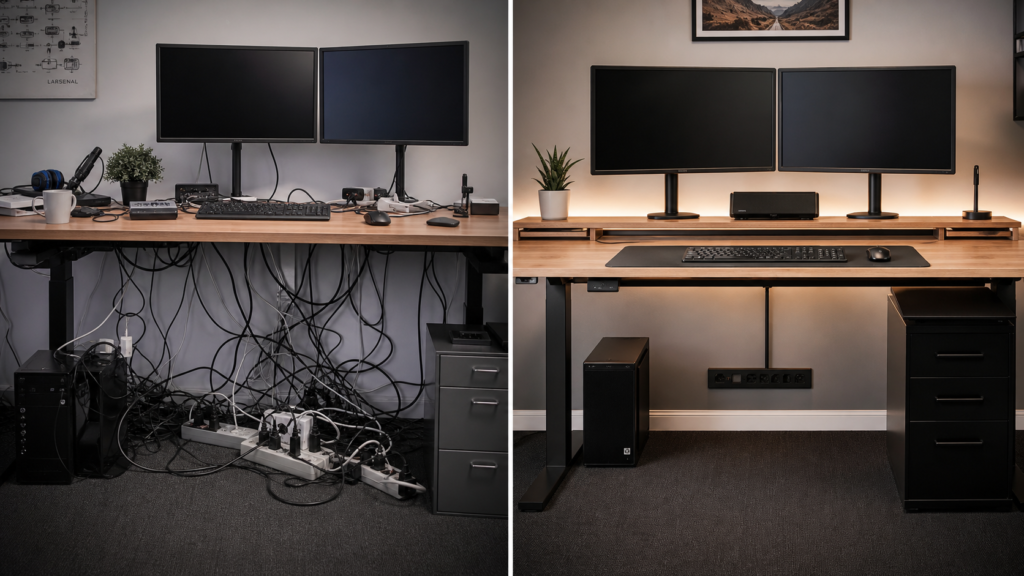
However, if your workstation is stationary and you use an external screen, choosing a dynamic monitor arm or a solid pc monitor riser will unlock valuable desk space, clear away cable clutter, and protect your spine from Forward Head Posture.
Take fifteen minutes today to measure your desktop thickness, check your screen height, and audit your hand alignment. Your neck, back, and wrists will thank you for years to come.
Frequently Asked Questions (FAQ)
1. Can I safely mount a dual monitor arm on a cheap IKEA desk?
It depends entirely on your specific IKEA model. Popular lightweight desks like the Linnmon or Lagkapten series feature a hollow-core cardboard paper honeycomb center sandwiched between thin sheets of fiberboard. Clamping a high-torque monitor arm directly onto these hollow desks will easily crush the core or snap the laminate. To safely use a clamp on these desks, you must sandwich the desktop with solid wood shims (such as bamboo chopping boards) or install a 3 mm thick steel reinforcement plate to spread the pressure.
2. Why do physical therapists discourage typing directly on an elevated laptop?
When you elevate a laptop screen to a healthy eye level, the integrated keyboard rises too high. Typing directly on it forces your wrists to bend sharply upward and shrugs your shoulders. This sustained, awkward posture doubles pressure inside your carpal tunnel, compressing the median nerve. Over time, this accelerates joint fatigue and increases your risk of developing painful repetitive strain injuries like carpal tunnel syndrome and tendinitis. Always use a separate keyboard and mouse when elevating your screen.
3. How do I check if my monitor is VESA-compatible for a monitor arm?
Look directly at the back panel of your screen. If you see four screw holes arranged in a perfect square pattern—typically spaced either 75×75 mm or 100×100 mm apart—your monitor is VESA-compatible and can be easily attached to any standard arm. If the back panel is completely smooth or has a permanently attached factory stand, it is not compatible unless you purchase a separate VESA adapter bracket made specifically for your monitor model.
4. Is a gas-spring monitor arm worth the extra cost over a budget tension-spring arm?
Yes, absolutely. Gas-spring arms use pressurized internal cylinders to counter-balance your screen’s exact weight, allowing smooth, silent, one-handed adjustments in any direction. Budget tension-spring mounts rely on mechanical friction screws. They are much stiffer, difficult to adjust, shake when typing, and can drift downward or wear out quickly over time.
5. Does elevating my laptop on a passive stand really improve its processing speed?
Yes, during heavy workloads. Elevating your laptop lifts its bottom intake grilles off the flat desk, expanding the ambient air gap. This simple passive elevation increases cooling efficiency and can drop CPU temperatures by 11% and GPU temperatures by 7.7%. By keeping your laptop running cooler, it prevents the system from triggering thermal throttling—the safety mechanism where your device automatically slows down its processors to prevent overheating.